tag.
In that case, adding clearout validation to the form requires the mode to be '**formSubmit**' rather than '**ajax**'; also, to handle the custom submit button, it is necessary to take over the button click with a transparent overlay before the actual form submission occurs. The steps below illustrate how to take over the form submit button and then attach validation to the form
{% stepper %}
{% step %}
Switch off the auto-validation mode. Adding Clearout's JS Widget will auto-detect the email fields by default and attach the validation. This can be disabled by setting the 'auto\_validation' option to 'false.'
{% endstep %}
{% step %}
Specify which form & submit button on the page requires validation by setting the form options as mentioned below:
> Please change the option values according to your form setting, since the below values are only for reference.
```javascript
var formOpts = {
formSelector: ".my-form",
/** specify form selector - mandatory option */
submit_button_selector: ".my-form-submit-btn",
/** specify form submit button - forces formSubmit mode */
mode: "formSubmit",
/** either ajax or formSubmit - default ajax */
submitButtonOverlay: true /** whether to overlay transparent container or not - default true */
}
```
{% endstep %}
{% step %}
Pass the form option (formOpts) to the Cleaout emailValidator service method attachToForm() is part of the widget on\_ready callback, as mentioned below.
```javascript
var coJsWidgetReady = function() {
console.log("Clearout.onReady called...attaching form for validation")
var formOpts = {
formSelector: ".my-form",
/** specify form selector - mandatory option */
submit_button_selector: ".my-form-submit-btn",
/** specify form submit button - forces formSubmit mode */
mode: "formSubmit",
/** either ajax or formSubmit - default ajax */
submitButtonOverlay: true /** whether to overlay transparent container or not - default true */
}
clearout.emailValidator.attachToForm(formOpts)
}
```
{% endstep %}
{% step %}
The final snippet of code would look something like below and needs to be inserted on the page where the form will be rendered.
```javascript
var coJsWidgetReady = function () {
console.log("Clearout.onReady called...attaching form for validation")
var formOpts = {
formSelector: ".my-form",
/** specify form selector - mandatory option */
submit_button_selector: ".my-form-submit-btn",
/** specify form submit button - forces formSubmit mode */
mode: "formSubmit",
/** either ajax or formSubmit - default ajax */
submitButtonOverlay: true/** whether to overlay transparent container or not - default true */
}
clearout.emailValidator.attachToForm(formOpts)
}
var clearout = window.clearout = window.clearout || [];
var opts = {
app_token: 'REPLACE_WITH_YOUR_CLIENT_APP_TOKEN',
api_url: "https://api.clearout.io",
auto_validation: false,
on_ready: coJsWidgetReady
}
clearout.push(["initialize", opts]);
(function () {
var u = "/";
var d = document,
g = d.createElement("script"),
s = d.getElementsByTagName("script")[0];
g.type = "text/javascript"; g.async = true;
g.src = "https://clearout.io/wp-content/co-js-widget/clearout_js_widget.js",
s.parentNode.insertBefore(g, s);
})();
```
{% endstep %}
{% endstepper %}
>
**Note****:** Please contact
, if none of the above methods help you integrate Clearout email validation on the form
## Integrate custom email validation using the verify() method.
Use the **clearout.emailValidator.verify()** method at your disposal in situations where you need to implement your own form validation with Clearout's real-time email validation for the email field. To find out more about the integration, please take a look at the code example below.
{% code expandable="true" %}
```javascript
```
{% endcode %}
> **Note:** Please contact , if none of the above methods help you integrate Clearout email validation on the form
## Customizing Feedback Error Message
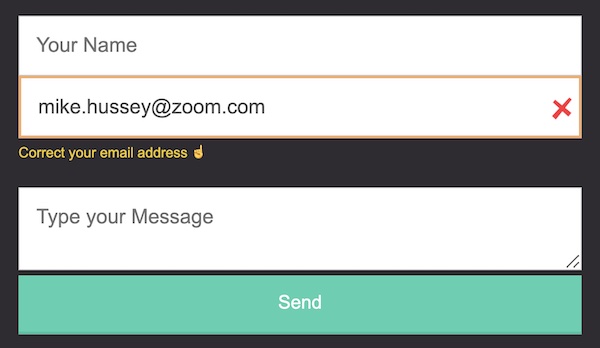
If you want to change the error message text or apply the styling, please check all the options that start with feedback, as they are of HTML string type, so feel free to update the text that suits your requirement and use inline HTML style or classname to change the look and feel.
Check out the code snippet and screenshot below to see how the feedback message text and styling have been modified.
```javascript
```
## Activate/Deactivate the apps:
If you want to disable any app temporarily, you can click on the toggle button against the app under the status column. Verification will not be carried out as long as the status of the app remains 'Inactive.' You can resume the verification by turning the toggle to an active state.
## Deleting the unused/old apps:
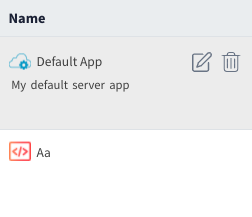
Any unused app can be deleted by clicking the delete icon against the app. On hovering over the app name, the Delete(Bin Icon) option will be visible.
## Reset/Regenerate the Token:
Whenever an abuse is identified while you are still in control of the usage, you may reset the app token. Resetting any app token provides two options:
* Deactivating the existing token in use. The token will expire immediately (in case of abuse is identified)
* Keep the already active token working for an hour post-resetting (which might be helpful in case of migrating to a newer setup). Once the first hour completes, the old token will not work.
It is always advisable to choose 'Expire Immediately' if any sort of abuse is identified. On successful resetting of the token, make sure to update the form code with the new token.
---
# Agent Instructions
This documentation is published with GitBook. GitBook is the documentation platform designed so that both humans and AI agents can read, navigate, and reason over technical content effectively. Learn more at gitbook.com.
## Querying This Documentation
If you need additional information that is not directly available in this page, you can query the documentation by asking a question.
Perform an HTTP GET request on the following URL with the `ask` and `goal` query parameters:
```
GET https://docs.clearout.io/developers/sdks/javascript-widget.md?ask=&goal=
```
`ask` is the immediate question: it should be specific, self-contained, and written in natural language.
`goal` is what the user is ultimately trying to achieve, the reason they need the answer. Sharing it helps GitBook give you a better, more relevant answer. A goal is most helpful when it describes the outcome the user wants rather than restating the question. For example, with `ask=how do I create an API token`, a goal like `automate deployments from our CI pipeline` lets GitBook tailor the answer to that use case.
The response will contain a direct answer to the question and relevant excerpts and sources from the documentation.
Use this mechanism when the answer is not explicitly present in the current page, you need clarification or additional context, or you want to retrieve related documentation sections.