> For the complete documentation index, see [llms.txt](https://docs.clearout.io/llms.txt). Markdown versions of documentation pages are available by appending `.md` to page URLs; this page is available as [Markdown](https://docs.clearout.io/developers/webhooks/test-webhooks.md).
# Test Webhooks
Test Clearout webhook integrations with sample events and payloads
This guide explains **how to test your webhook integration** using Clearout's built-in testing tools and local development environments. Proper testing ensures your webhook endpoints work correctly before handling real events.
### Dashboard Testing
Clearout provides a built-in test interface that allows you to send sample webhook events to your configured endpoints. This method is the simplest way to confirm that your webhook integration is functioning correctly.
**Test Events Benefits**
Webhook test events let you simulate real event payloads, so you can verify your endpoint configuration and ensure your application handles webhooks correctly before going live.
### Accessing Test Interface
To access the webhook test interface:
{% stepper %}
{% step %}
Log in to your [Clearout App](https://app.clearout.io/login)
{% endstep %}
{% step %}
Navigate to the **Developer** section in the main navigation
{% endstep %}
{% step %}
Click on **Webhook** in the left sidebar
{% endstep %}
{% step %}
In the webhook list, click the **Test Events** button (paper plane icon) for any webhook
{% endstep %}
{% step %}
You'll be taken to the Test Events interface
{% endstep %}
{% endstepper %}
### Test Events Interface
The test interface provides a simple form to send test webhook events:
#### URL Input
* **Pre-filled URL** - The webhook URL from your configuration is automatically filled in
* **HTTPS Required** - All test URLs must use HTTPS for security
* **Configured Endpoints Only** - You can only test your configured webhook endpoints
#### Event Selection
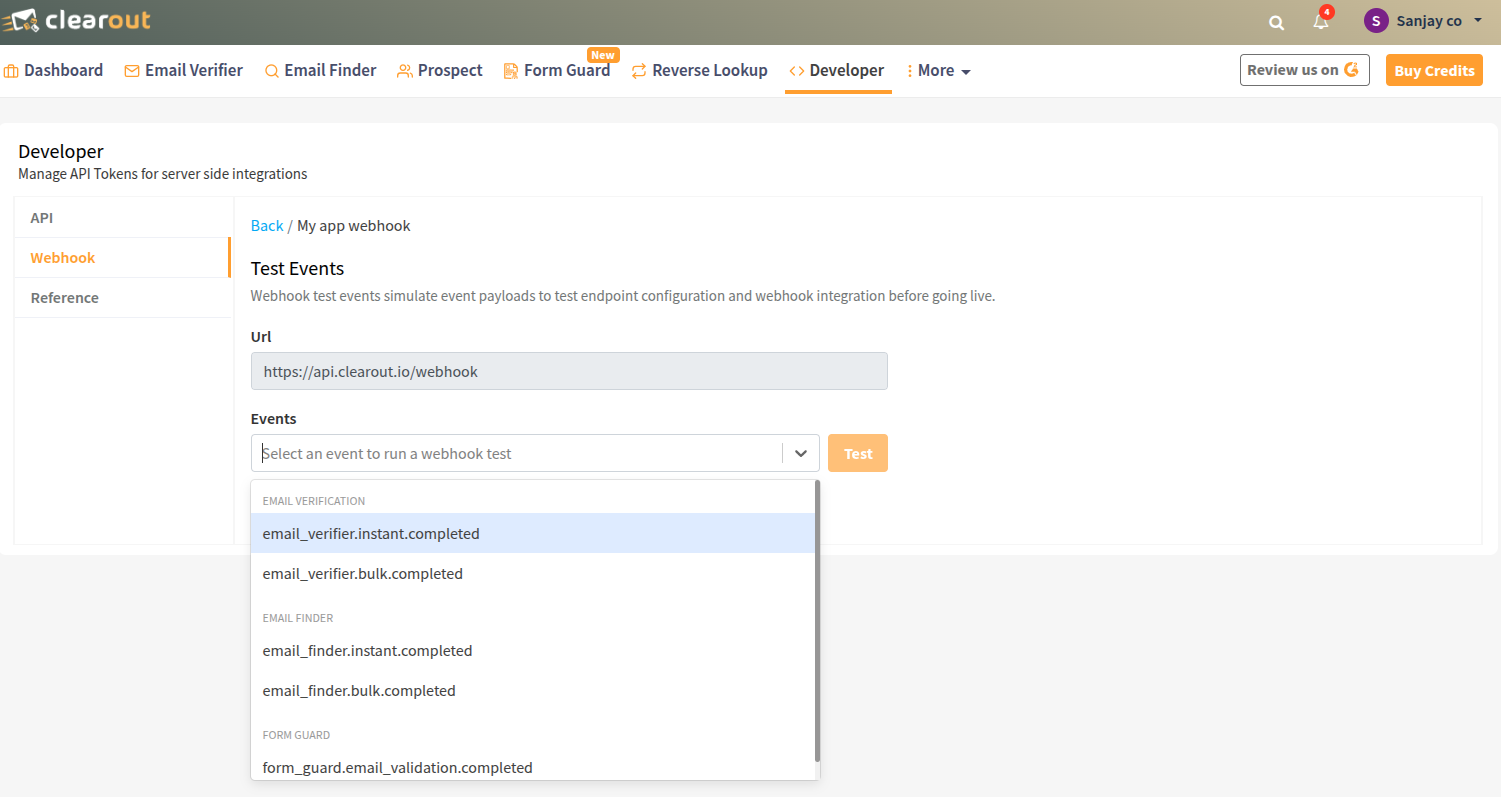
The Events dropdown contains all available webhook events organized by service. Select the event type you want to test from the dropdown menu.
Event selection dropdown showing all available webhook events grouped by service
### Test Process
Testing webhooks is straightforward using the dashboard interface:
1. **Select Event Type** - Choose the event you want to test from the dropdown
2. **Click Test Button** - Send the test event to your webhook URL
3. **Verify Delivery** - Check your endpoint to confirm the payload was received
4. **Check Event Logs** - View delivery status and details in the event logs
**Test Event Characteristics**
* Test events are sent immediately (no retries)
* Test events are free and don't consume credits
* Test events have `event_mode: "test"` in the payload
* Test events appear in event logs for verification
### Local Development
For local development, you'll need to expose your local server to receive webhooks. Here are the recommended approaches:
#### Using ngrok
[ngrok](https://ngrok.com/) is the most popular tool for local webhook development:
* Install ngrok: `npm install -g ngrok` or download from [ngrok.com](https://ngrok.com/download)
* Start your local webhook server (e.g., on port 3000)
* Expose your local server: `ngrok http 3000`
* Copy the HTTPS URL provided by ngrok (e.g., `https://abc123.ngrok-free.app`)
* Use this URL as your webhook endpoint in the Clearout dashboard
**ngrok Tips**
The free ngrok plan provides a new URL each time you restart. For consistent testing, consider upgrading to a paid plan for static URLs, or use the ngrok authtoken for more stable URLs.
#### Alternative Tools
* **webhook.site** - Simple webhook testing service for quick testing
* **Beeceptor** - Mock API service with webhook support
* **LocalTunnel** - Open source alternative to ngrok
* **Cloudflare Tunnel** - Free tunneling service from Cloudflare
### Test Payload Example
Here's an example test payload for `email_finder.instant.completed`:
```json
{
"event_id": "68994705edd8dab364becfe6",
"event_type": "email_finder.instant.completed",
"event_mode": "test",
"event_on": "2025-08-11T01:27:33.597Z",
"payload": {
"status": "success",
"data": {
"emails": [
{
"email_address": "sinha@clearout.io",
"role": "no",
"business": "yes"
}
],
"first_name": "sinha",
"last_name": "",
"full_name": "sinha",
"domain": "clearout.io",
"confidence_score": 99,
"_depreciated": {
"confidence_score": 92
},
"total": 1,
"company": {
"name": "clearout"
},
"found_on": "2025-08-11T01:27:33.564Z",
"credits_charged": 4
}
}
}
```
**Test vs Live Events**
The only difference between test and live events is the `event_mode` field. Test events use `"test"` while live events use `"live"`. All other payload data remains the same.
### Testing Signature Validation
When testing signature validation, you can generate test signatures using your webhook secret:
#### Signature Generation Steps
{% stepper %}
{% step %}
Get the current timestamp: `Math.floor(Date.now() / 1000)`
{% endstep %}
{% step %}
Create the data string: `timestamp + '.' + JSON.stringify(payload)`
{% endstep %}
{% step %}
Generate HMAC-SHA256 hash with your webhook secret
{% endstep %}
{% step %}
Format the signature header: `t=timestamp,v1=signature`
{% endstep %}
{% endstepper %}
#### Test Signature Example
```javascript
// Example signature generation for testing
const crypto = require('crypto');
function generateTestSignature(secret, payload) {
const timestamp = Math.floor(Date.now() / 1000);
const data = `${timestamp}.${JSON.stringify(payload)}`;
const signature = crypto
.createHmac('sha256', secret)
.update(data, 'utf8')
.digest('hex');
return `t=${timestamp},v1=${signature}`;
}
// Usage
const testPayload = { /* your test payload */ };
const secret = 'your-webhook-secret';
const signature = generateTestSignature(secret, testPayload);
console.log('Test signature:', signature);
```
### Viewing Test Results
After sending a test event, you can view the results in the Event Logs:
#### Accessing Event Logs
* Click the **View Event Logs** button (eye icon) for any webhook
* Or click the **Event Logs** button at the top of the webhook dashboard
* Select the test event from the list on the left
* View detailed information in the right panel
#### Event Log Details
The event logs show comprehensive information about each webhook delivery:
* **Summary Section** - Event type, delivery status, timestamps, and webhook URL
* **Event Data Section** - Complete JSON payload that was sent to your endpoint
* **Delivery Status** - Success/failure status with response codes
* **Mode Indicator** - Shows "Test" for test events vs "Live" for real events
**Next Steps**
Now that you can test your webhooks, learn about [webhook signature validation](https://docs.clearout.io/webhooks/validate-deliveries.html) and understand [webhook retry behavior](https://docs.clearout.io/webhooks/redelivering-webhooks.html) for production reliability.
---
# Agent Instructions
This documentation is published with GitBook. GitBook is the documentation platform designed so that both humans and AI agents can read, navigate, and reason over technical content effectively. Learn more at gitbook.com.
## Querying This Documentation
If you need additional information that is not directly available in this page, you can query the documentation by asking a question.
Perform an HTTP GET request on the following URL with the `ask` and `goal` query parameters:
```
GET https://docs.clearout.io/developers/webhooks/test-webhooks.md?ask=&goal=
```
`ask` is the immediate question: it should be specific, self-contained, and written in natural language.
`goal` is what the user is ultimately trying to achieve, the reason they need the answer. Sharing it helps GitBook give you a better, more relevant answer. A goal is most helpful when it describes the outcome the user wants rather than restating the question. For example, with `ask=how do I create an API token`, a goal like `automate deployments from our CI pipeline` lets GitBook tailor the answer to that use case.
The response will contain a direct answer to the question and relevant excerpts and sources from the documentation.
Use this mechanism when the answer is not explicitly present in the current page, you need clarification or additional context, or you want to retrieve related documentation sections.