> For the complete documentation index, see [llms.txt](https://docs.clearout.io/llms.txt). Markdown versions of documentation pages are available by appending `.md` to page URLs; this page is available as [Markdown](https://docs.clearout.io/email-finder/instant-finder.md).
# Instant Finder
Discover professional email addresses instantly in real time
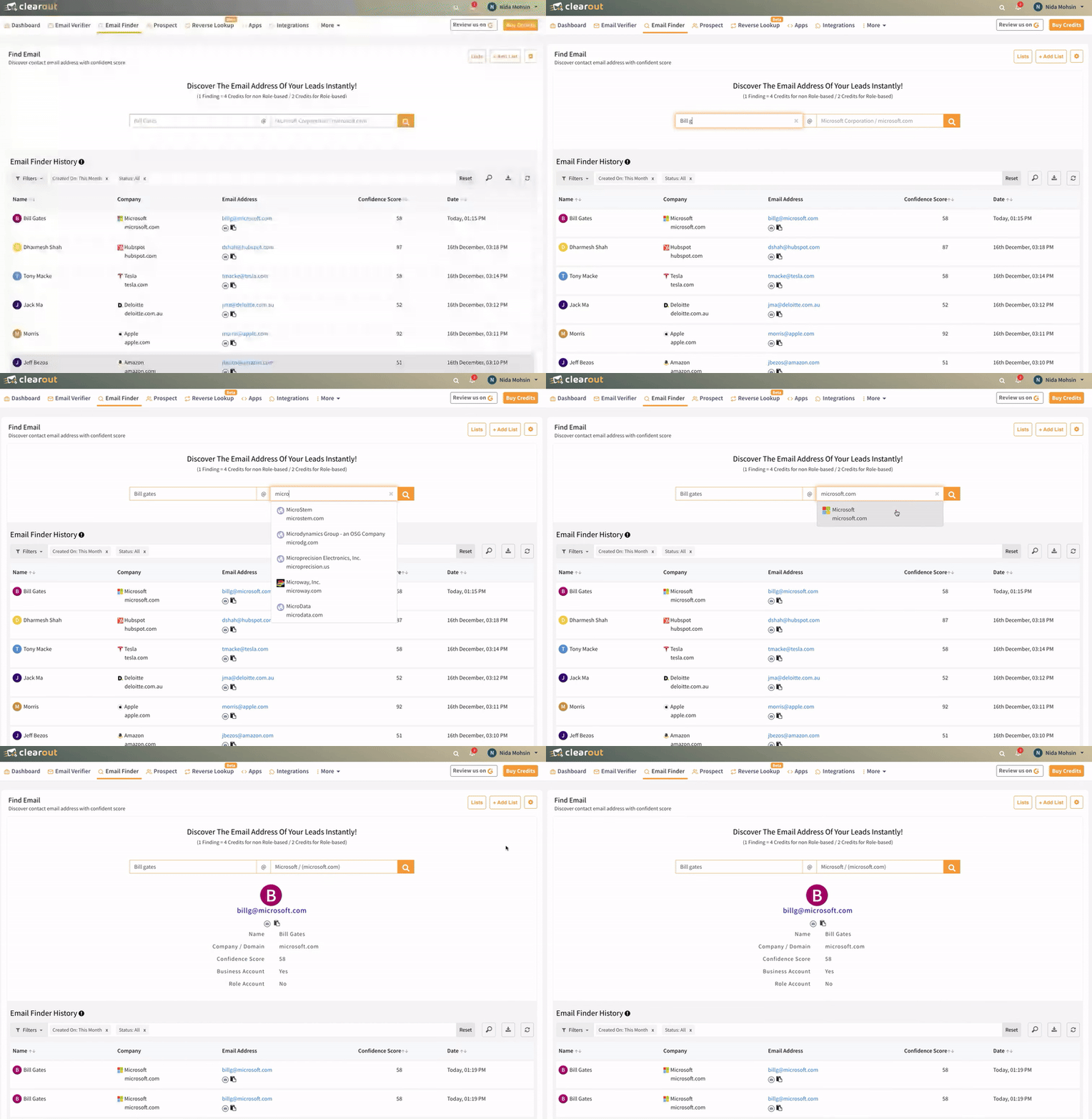
As the name suggests, Instant Email Finder is used to get instant results. Once you have created an account, go to Email Finder, enter the prospect's name and the domain/company name, and click on search.
This feature allows you to look up email addresses individually, and the results will be available in a few seconds.
## Where to Find It in App
* Log in to your [**Clearout dashboard**](https://app.clearout.io/dashboard).
* In the top navigation, go to **Email Finder → Find Email**.
* The Instant Finder screen displays input fields to enter the **prospect’s name and** **company/domain**, along with a **Search** button to find the email address instantly.
## How It Works
### Input
* Enter the **prospect’s name** in the name field.
* Enter the **company name or domain** in the corresponding input field.
* Click **Search** to start finding the email address.
The result will be displayed within a few seconds or it will be available under the [Email Finder History.](#finder-history-in-activities)
### Reading output
For each lookup, Email Finder returns the **discovered email address**, along with its normalized **name, company,** **email address**, and **confidence score** to help you understand the quality of the result.
Any email lookup done using Instant Finder reflects the result in the history table of the email finder. The email lookup details are retained for only 30 days. It comes with a download option too.
Any lookup with the status **"In-progress"** will be added to the history and populated automatically.
### Limits
* Instant Email Finder is designed for looking up email addresses for individual prospects.
* It is best suited for **quick discovery** rather than processing large lists.
* For discovering email addresses at scale, use [**Bulk Email Finder**](/email-finder/bulk-finder.md).
## Email Finder History
The **Email Finder History** section provides an audit trail of all instant email lookups.
* Columns include **Name**, **Company**, **Email Address**, **Confidence Score**, and **Date**.
* You can:
* Filter by **Created On** date range (for example, “Last 7 days”).
* Filter by **Status** (e.g., All / Completed / In Progress).
* Search by **Name / Company** using the search box above the table.
* Export the results using the download icon.
## Download discovered email
All Instant Email Finder runs are logged in the [**Activities**](https://app.clearout.io/activities) section.
* In the top navigation, go to **More → Activities.**
* Filter by **Email Finder** to see past runs.
* Download the report (for example, CSV) and open it in your preferred tool to review or share results.
{% hint style="info" %}
**Developer note**
Want to automate email discovery? Refer to the [Email Finder API](/developers/api/email-finder.md#post-email_finder-instant) section for sample code and integration details.
{% endhint %}
---
# Agent Instructions
This documentation is published with GitBook. GitBook is the documentation platform designed so that both humans and AI agents can read, navigate, and reason over technical content effectively. Learn more at gitbook.com.
## Querying This Documentation
If you need additional information that is not directly available in this page, you can query the documentation by asking a question.
Perform an HTTP GET request on the following URL with the `ask` and `goal` query parameters:
```
GET https://docs.clearout.io/email-finder/instant-finder.md?ask=&goal=
```
`ask` is the immediate question: it should be specific, self-contained, and written in natural language.
`goal` is what the user is ultimately trying to achieve, the reason they need the answer. Sharing it helps GitBook give you a better, more relevant answer. A goal is most helpful when it describes the outcome the user wants rather than restating the question. For example, with `ask=how do I create an API token`, a goal like `automate deployments from our CI pipeline` lets GitBook tailor the answer to that use case.
The response will contain a direct answer to the question and relevant excerpts and sources from the documentation.
Use this mechanism when the answer is not explicitly present in the current page, you need clarification or additional context, or you want to retrieve related documentation sections.