Bulk Validation
Validate large email lists in bulk processing
Bulk Validation lets you upload and verify entire email lists directly from the Clearout dashboard. It is designed for list cleaning at scale, helping you remove invalid, risky, gibberish, and disposable addresses before sending campaigns.
Where to Find It in App
Log in to your Clearout dashboard.
In the top navigation, go to Email Verifier → Add List.
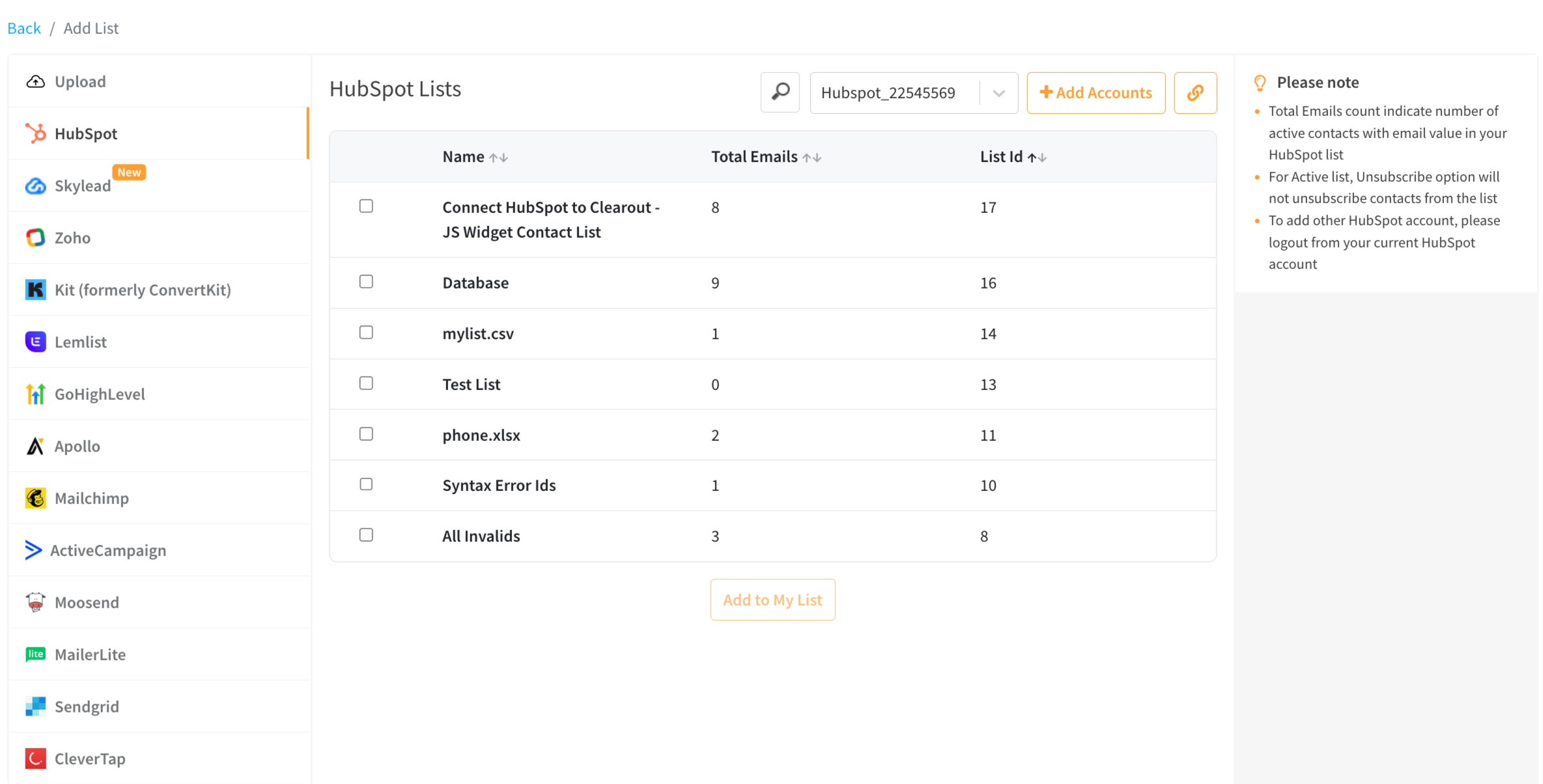
Browse the file to be verified (or) Import a list from a connected integration.
Supported File Formats
.csv
Comma-separated file
email, name
.xlsx
Excel workbook
Multiple sheets supported
How It Works
Click Email Verifier → Add List and select your file.
Once the file has been uploaded, click on 'Go To Email Verify Lists'. You can remove any files that were uploaded incorrectly before the verification process begins.
Start Verification
On your Email Verifier → Lists page, Click on 'Verify' to start the verification. The verification process begins immediately and shows a real-time progress update.

If necessary, you can stop the verification at any point. Any progress made up to that point remains available for download the process begins immediately and shows a real-time progress update.
Cancel Verification
Started bulk verification on the wrong file? You can cancel a file that is in progress.
By canceling verification, credits will be redeemed for verified email addresses, while unverified email addresses will be marked as Unknown with the reason "Request cancelled" without redeeming credits. In some cases, cancellation may take to 15 minutes to complete
Duplicate File Identification
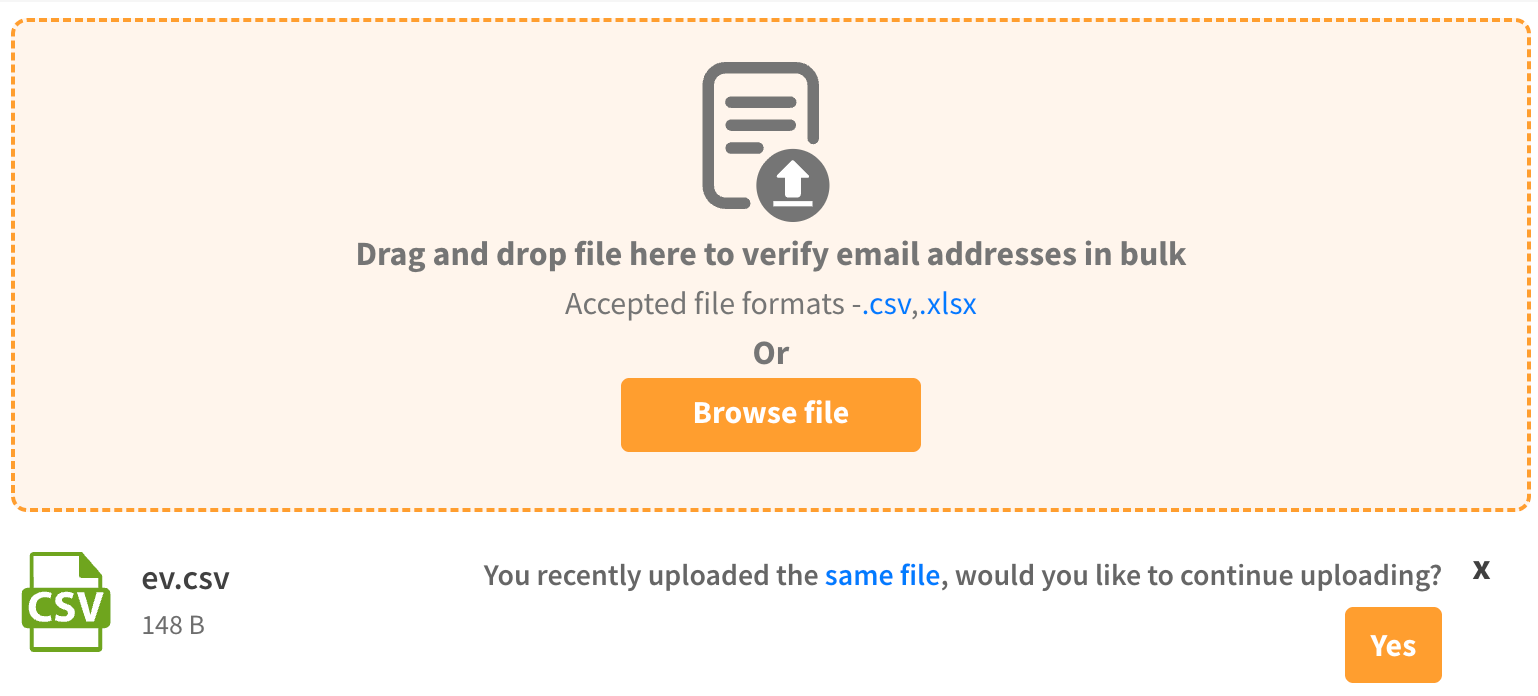
Clearout automatically assesses whether a file upload has been validated previously or not and tells you when a duplicate file is uploaded for validation so you can confirm whether to proceed.
This is supported in the Web app & API for Email Verification

Download Verified File
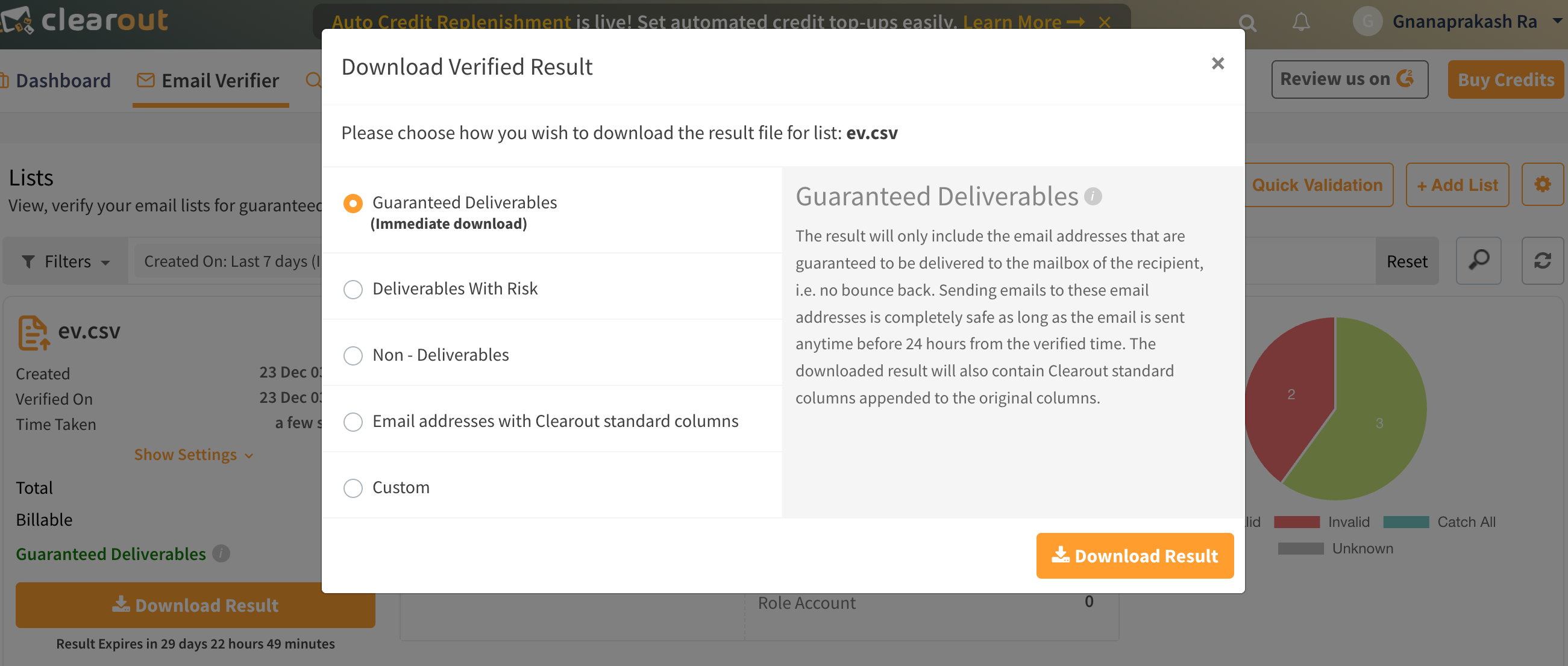
After successful verification of the email list, a detailed report about the quality and existence of each email is generated. Clearout provides 5 specially designed email verification reports, which you can generate at your convenience.
Once the verification is complete, click on 'Download' and select the type of result.

Guaranteed Deliverables
The result will only include the email addresses guaranteed to be delivered to the recipient's mailbox, i.e., no bounces.
Sending emails to these email addresses is entirely safe as long as the email is sent anytime before 24 hours from the verified time. The downloaded result will also contain Clearout standard columns appended to the original columns.
Deliverables With Risk
The result will include Guaranteed Deliverables (mentioned above) and the email addresses that are determined risky.
The risk factor depends upon multiple reasons like Low deliverability, high volume of role-based email addresses, temporary mail account issue, mail server configured to accept all email messages, etc. Duplicates, if any, will be included in the report but will not be additionally billed.
Non - Deliverables
The result will include the email addresses that will bounce, so it is highly recommended not to send any emails to such addresses and unsubscribe them from the mailing list. Duplicates, if any, will be included in the report but will not be billed again.
Email addresses with Clearout standard columns
The result will include all verified status email addresses – Valid, Invalid, Catch All, Unknown appended to other Clearout columns. Duplicates, if any, will not be included in the result file. The columns of the original file will not be included in the results.
Custom
The result will include your original list together with the columns you choose further- Valid, Invalid, Catch All, and Unknown. Select columns that you want to have in your list by clicking on the required checkbox. Duplicates, if any, can be excluded/included in the result on choice.
You may download the result more than once, but the result will automatically expire after 30 days from the time of verification and will be shown as: Result expired.
Unable to locate the downloaded result? Try these:
Check the 'Download' folder in your system
Clear the 'cache' and try downloading again
Check if the pop-up is blocked
Try downloading in the 'incognito' mode
Use a different browser
Contact us if the issue persists.
Import List from ESP/CRM
You can import mailing lists for verification directly from your ESP/CRM accounts by connecting them to your Clearout account. Multiple accounts can be integrated.

Refer to the following pages for step-wise integrations
ActiveCampaign
MailerLite
Export Verified List to ESP/CRM
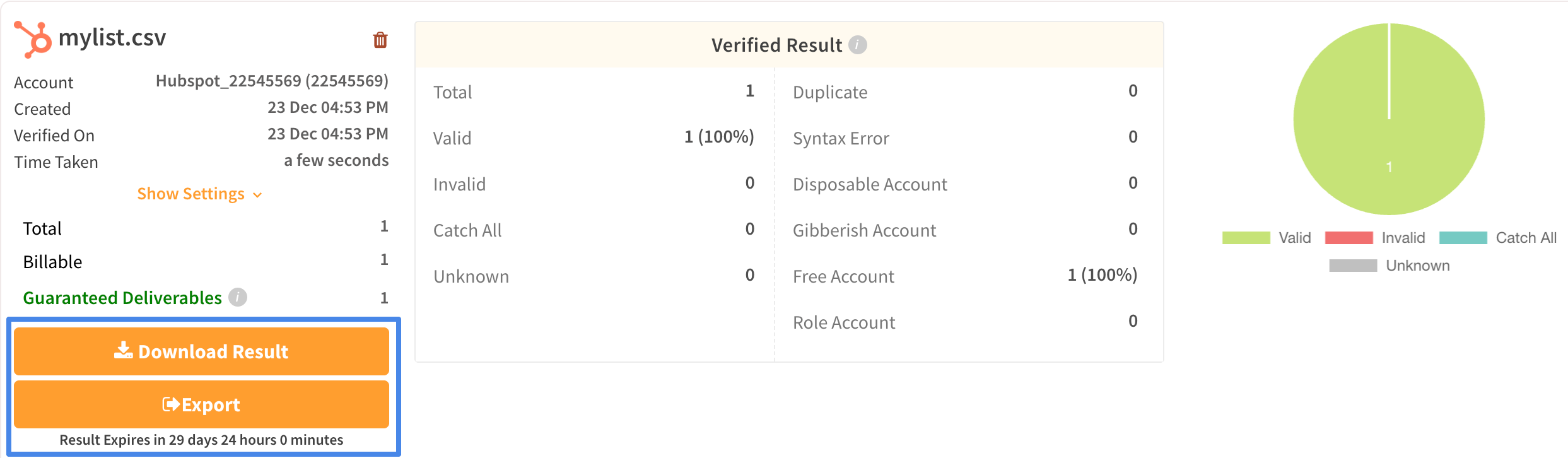
Once an ESP-imported list is verified, you can download the result or export it to the relevant account. Accordingly, you may click on either of the two 'Download Result' or 'Export.'

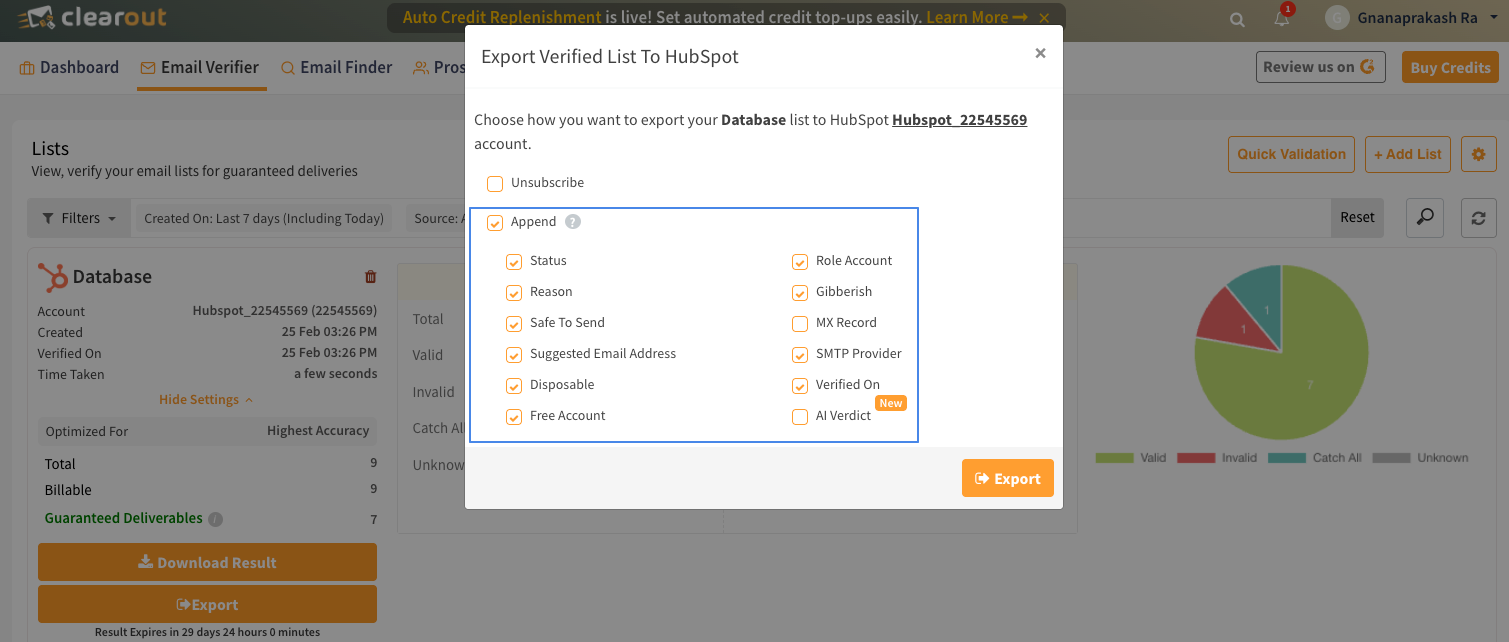
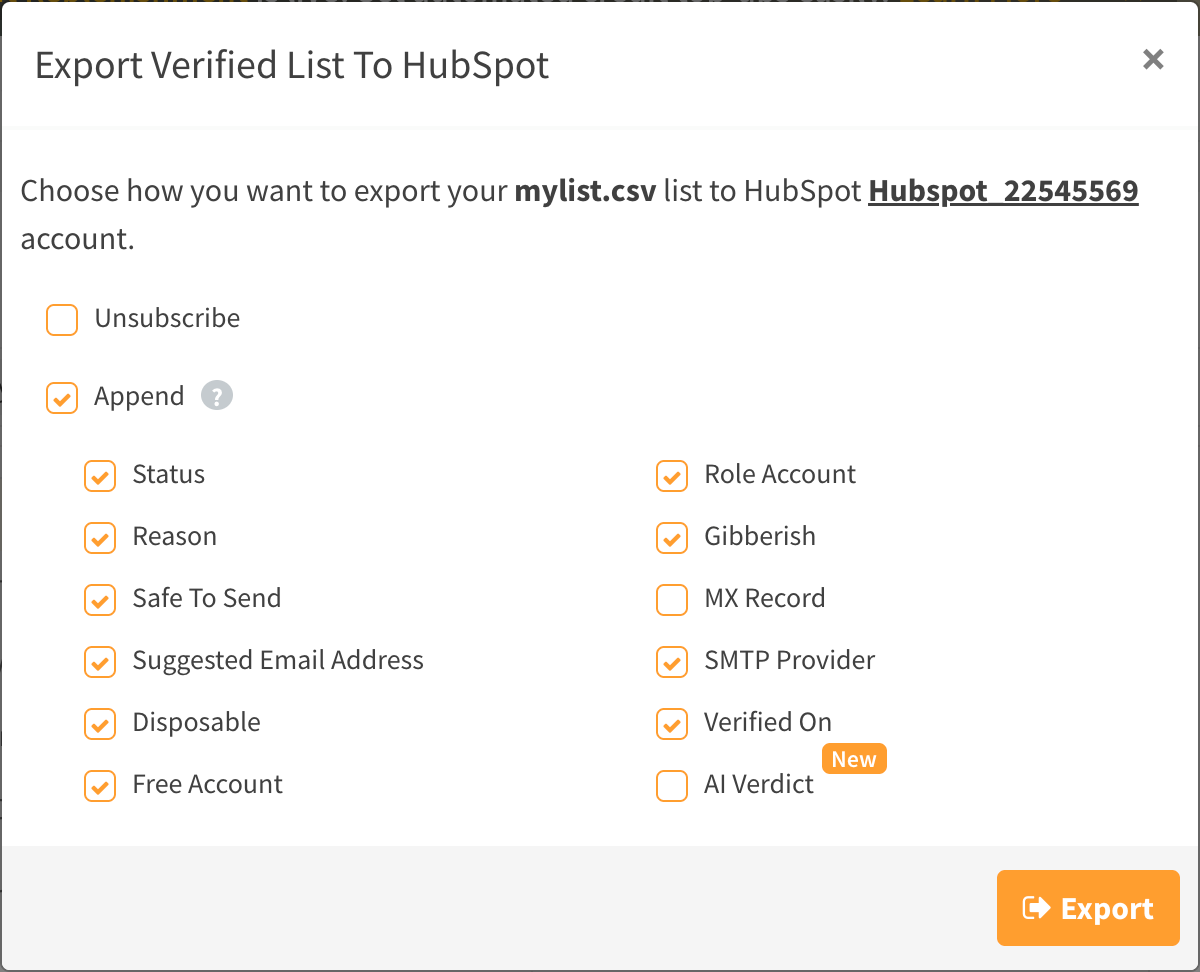
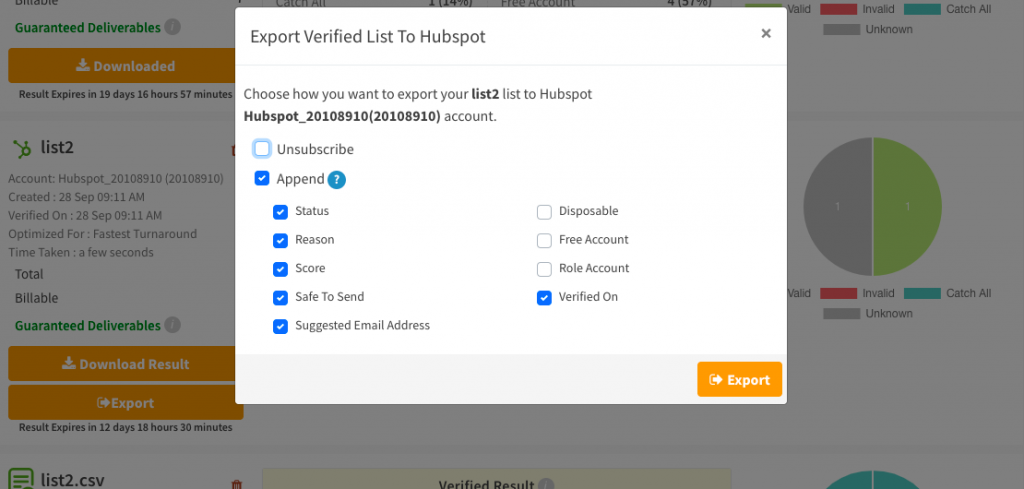
When exporting the result, you can choose how to export the list to your ESP/CRM account

Unsubscribe option
Selecting this checkbox unsubscribes all non-deliverables from your list.
When updating an ESP list, be sure to export only once. If you have any questions regarding the unsubscribed email addresses, please contact our support team.

Append option
All columns selected for append will be appended with 'Clearout Verification' in the result file. You can select the checkbox that you want to include in the file to be exported

List verification analysis
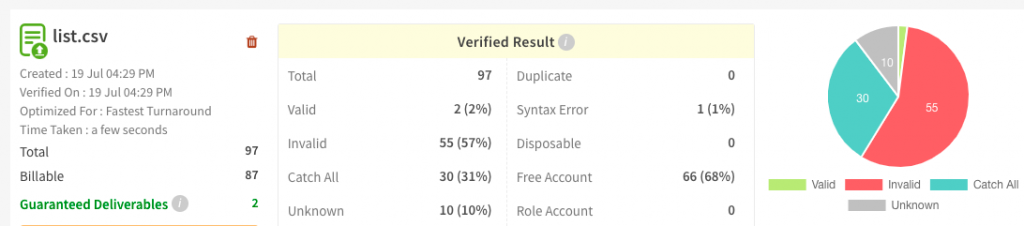
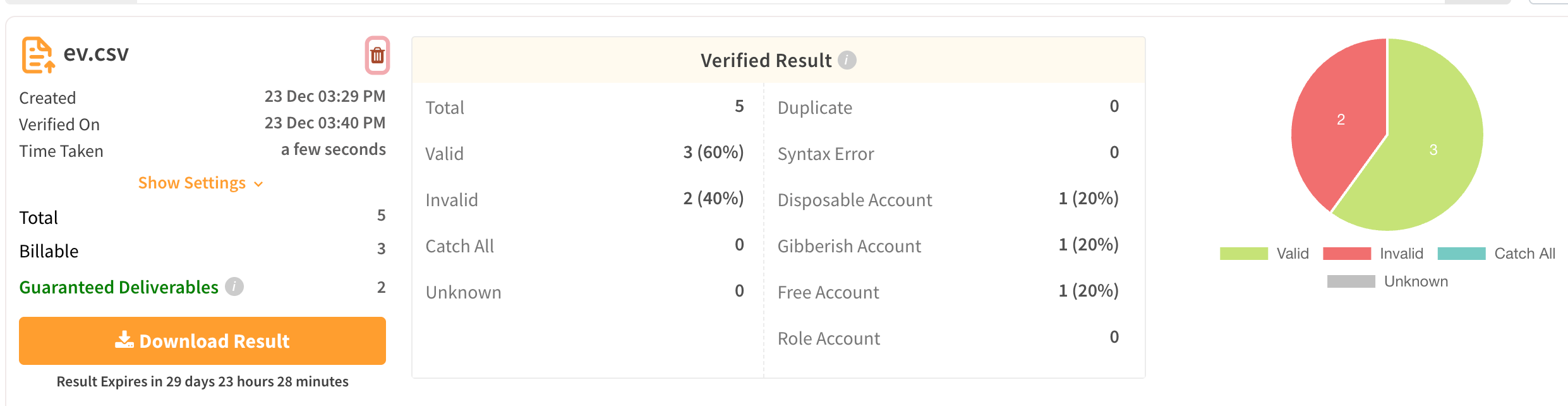
Clearout email verifier understands how valuable time is for a user. Therefore, it provides a brief yet critical analysis of each bulk verification list that has undergone verification. This analysis provides a quick insight into the overall email verification result before downloading the actual detailed result.

Analysis insights
Percentage of the 'Valid', 'Invalid', 'Catch All', and 'Unknown' emails
Pie chart for total counts of 'Valid', 'Invalid', 'Catch All', and 'Unknown' emails
Total counts for 'Duplicate', 'Syntax Error', 'Disposable', 'Free Account' and 'Role Account'
The name of the list
The date of creation and the date of verification
Mode of verification: optimized for highest accuracy/fastest turnaround
Time taken for verification.
Total number of Emails in the list
Billable counts are those for which your credits have been used for verification. Credits are not deducted for duplicates or unknown status.
Number of email addresses with guaranteed delivery
Remove List
A user can delete the files before validation or after validation through the 'bin' icon next to the list name.
List cannot be deleted while verification is in progress

Developer note
Want to automate this? Use the Bulk Verify API to run the same bulk email list validation from your application
Last updated
Was this helpful?