> For the complete documentation index, see [llms.txt](https://docs.clearout.io/llms.txt). Markdown versions of documentation pages are available by appending `.md` to page URLs; this page is available as [Markdown](https://docs.clearout.io/integrations/hubspot/hubspot-crm.md).

# HubSpot CRM

Clearout natively integrates with HubSpot CRM to maintain high deliverability and improve overall contact data quality across your account. Clearout supports two contact verification solutions for HubSpot:

* [Data Pulse](/integrations/hubspot/hubspot-crm.md#how-data-pulse-works): Continuous, real-time contact monitoring and multi-field enrichment automatically validating Name, Email, and Phone data as contacts enter HubSpot.
* [Email Verifier](/integrations/hubspot/hubspot-crm.md#how-email-verifier-works): On-demand bulk verification and cleaning for existing HubSpot email lists.

## Connect Your HubSpot Account

Connecting your HubSpot CRM account to Clearout is a one-time setup required for both Data Pulse and Email Verifier.

* Log in to your Clearout account.
* Go to the [**Integration**](https://app.clearout.io/integrations/connect-account) tab and choose **HubSpot**.
* Click **Add Account** and sign in with your HubSpot credentials

<div data-with-frame="true"><figure><img src="/files/mTlPnFnuq5Na0irLh0eL" alt="Connect HubSpot account for CRM list Email validation" width="563"><figcaption></figcaption></figure></div>

* Once connected, your account will appear under your linked HubSpot integrations.

{% hint style="info" %}
You can connect multiple HubSpot accounts to the same Clearout account
{% endhint %}

## How Data Pulse Hubspot Two-Way-Sync Works

Data Pulse is the real-time CRM contact verification tool that validates every email, phone, and name the moment a contact is created - and writes the clean record back automatically. [Know more.](/data-pulse/overview.md)

{% stepper %}
{% step %}

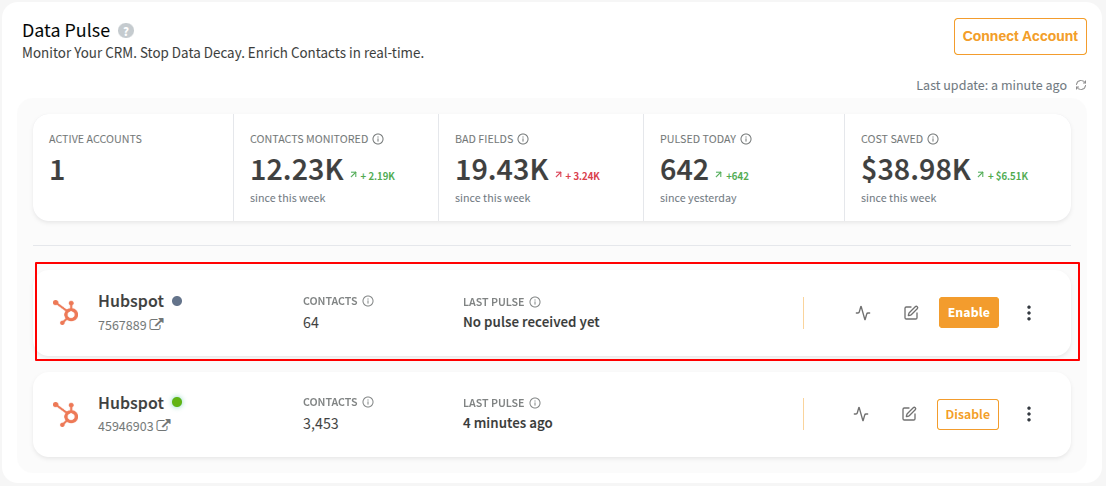
### Enable Account

Go to the Data Pulse [dashboard](https://app.clearout.io/data-pulse), find your linked HubSpot account, and click **Enable**.

<div data-with-frame="true"><figure><img src="/files/QyPA1uFdSpxHTf9FFn8Q" alt=""><figcaption></figcaption></figure></div>

{% hint style="info" %}
At any given point realtime pulsing can only be enabled on one clearout account for a given hubspot account.
{% endhint %}
{% endstep %}

{% step %}

### Choose what to enrich

Select the target fields you want to validate and enrich (e.g., Name, Email, Phone).

<div data-with-frame="true"><figure><img src="/files/EI8LJI3xCRJiHiPaybM4" alt=""><figcaption></figcaption></figure></div>

{% hint style="warning" %}
At least one field must be selected to continue.
{% endhint %}
{% endstep %}

{% step %}

### Configuring Data Field Mapping

Decide which fields require validation and define output metadata fields for appending.

#### Input Field Mappings

Map incoming fields from your data source to Data Pulse input fields to ensure accurate validation and enrichment. You can configure mappings using either a **preset** or by selecting **custom fields**.

Available presets:

* **Auto Map** - Automatically detects and maps fields based on the source structure.

<div data-with-frame="true"><figure><img src="/files/8mj6cVpzmh2qGU37owiC" alt=""><figcaption></figcaption></figure></div>

**Data Pulse Input Fields Reference**

<table><thead><tr><th width="166">Field Name</th><th>Description</th></tr></thead><tbody><tr><td><strong>First Name</strong></td><td>Given name associated with the contact</td></tr><tr><td><strong>Last Name</strong></td><td>Surname associated with the contact</td></tr><tr><td><strong>Full Name</strong></td><td>Combined name field (if available in source)</td></tr><tr><td><strong>Email</strong></td><td>Primary email address for validation and enrichment</td></tr><tr><td><strong>Phone</strong></td><td>Contact number for validation and formatting</td></tr><tr><td><strong>Country</strong></td><td>Geographic identifier used to determine the country dialling code during phone validation if the dialling code is not present in the number</td></tr></tbody></table>

#### Output Field Mappings

Choose which fields should be returned and synced back after enrichment. You can configure mappings using either a **preset** or by selecting **custom fields**.

Available presets:

* **All** - Selects every available output field.
* **Mandatory Fields** - Selects only the required fields.

<div data-with-frame="true"><figure><img src="/files/ZvvslAL3nlEaG9kDSJRH" alt=""><figcaption></figcaption></figure></div>

**Output Fields Reference**

{% tabs %}
{% tab title="Email" %}

<table data-search="false"><thead><tr><th>Clearout Field Name</th><th>Description</th></tr></thead><tbody><tr><td><strong>Status</strong> <em>(Mandatory)</em></td><td>Validation status of the email</td></tr><tr><td><strong>Safe to Send</strong> <em>(Mandatory)</em></td><td>Indicates if the email is safe for outreach</td></tr><tr><td><strong>Reason</strong></td><td>Reason associated with the validation result</td></tr><tr><td><strong>SMTP Provider</strong></td><td>Identified email service provider</td></tr><tr><td><strong>Free Domain</strong></td><td>Indicates if the email uses a free/public email provider</td></tr><tr><td><strong>Role Email</strong></td><td>Indicates if the email is a role-based address (e.g., info@, support@, admin@)</td></tr><tr><td><strong>Disposable Email</strong></td><td>Indicates if the email uses a temporary/disposable domain</td></tr><tr><td><strong>Gibberish Email</strong></td><td>Indicates if the email's local part appears to be random or meaningless characters</td></tr></tbody></table>
{% endtab %}

{% tab title="Phone" %}

| Clearout Field Name         | Description                                 |
| --------------------------- | ------------------------------------------- |
| **Status** *(Mandatory)*    | Validation status of the phone number       |
| **Carrier**                 | Telecom carrier information                 |
| **Country Name**            | Country associated with the number          |
| **Country Timezone**        | Timezone of the detected country            |
| **E164 Format**             | Standardized international format           |
| **Line Type** *(Mandatory)* | Type of phone line (mobile, landline, etc.) |
| **Location**                | Geographic location metadata                |
| **DST Observed Hrs**        | Hours adjusted for daylight saving time     |
| {% endtab %}                |                                             |

{% tab title="Name" %}

| Clearout Field Name               | Description                                     |
| --------------------------------- | ----------------------------------------------- |
| **Normalized Name** *(Mandatory)* | The cleaned/standardized version of the name    |
| **Gibberish** *(Mandatory)*       | Indicates if the name appears invalid or random |
| **Status**                        | Validation result for the name                  |
| {% endtab %}                      |                                                 |

{% tab title="Miscellaneous" %}

| Clearout Field Name           | Description                             |
| ----------------------------- | --------------------------------------- |
| **Enriched On** *(Mandatory)* | Timestamp when enrichment was performed |
| {% endtab %}                  |                                         |
| {% endtabs %}                 |                                         |

{% hint style="info" %}
You can save custom field mappings as a new preset. Saved presets can be reused for the same data source in future configurations. This applies to both import and output field mappings.
{% endhint %}
{% endstep %}

{% step %}

### Activate Data Pulse

<div data-with-frame="true"><figure><img src="/files/xMhJ6z0sWQbQ6aH6xV4C" alt=""><figcaption></figcaption></figure></div>

Complete the setup wizard to activate real-time validation and enrichment.\
Weekly data quality report is **enabled by default**. You can opt-in or opt-out of the report here.
{% endstep %}
{% endstepper %}

### What to expect once it is enabled

Data Pulse monitors contacts as they are created after it is enabled. Validates and enriches them in real-time within seconds. Then appends its own set of [Clearout result properties](/data-pulse/supported-data-sources.md#fields-data-pulse-updates) to your contact records.

A weekly data quality digest is delivered every Monday.

## How Email Verifier Works

The standard Email Verifier allows you to select existing contact lists from HubSpot, perform bulk verification inside Clearout, and sync updated results back to your CRM.

You can also watch this short walkthrough to see the full end‑to‑end flow:

{% embed url="<https://www.youtube.com/watch?v=tXFCh58EgRM>" %}

{% stepper %}
{% step %}

### Add the email lists

* From the linked HubSpot account view in Clearout, select the list(s) you want to validate.

<div data-with-frame="true"><figure><img src="/files/A0VUB8g8PWXUKhjbhZuI" alt="Select HubSpot Email List to validate on Clearout App"><figcaption></figcaption></figure></div>

* Click **Add to My list** to import them into Clearout for verification

{% hint style="info" %}
Note that only Contacts lists are supported for verification.
{% endhint %}
{% endstep %}

{% step %}

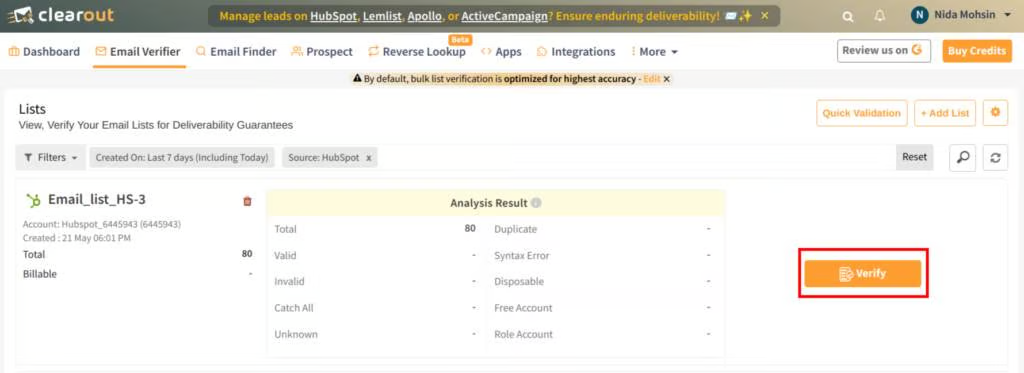
### Verify the email list

* After the list is added, click **Verify** to start validating the HubSpot list.

<div data-with-frame="true"><figure><img src="/files/n0wyEEUA8VMgA2CFbruF" alt="Start Verification of selected HubSpot List" width="563"><figcaption></figcaption></figure></div>

* Clearout will process the list and mark each email with a verification status (valid, invalid, risky, etc.).
  {% endstep %}

{% step %}

### Export the verified results

Once validation is complete, you can:

* **Download** the results as CSV
* **Export directly back to HubSpot.**
* When exporting to HubSpot, choose one or both of the following:

  * **Unsubscribe:** Automatically unsubscribes invalid/non‑deliverable email addresses in the selected HubSpot static list, removing them from mailings (<mark style="color:$info;">Unsubscribe works only for static lists).</mark>
  * **Append:** Adds Clearout result columns to the existing records in HubSpot so you can see verification status and related fields inside HubSpot.

  <div data-with-frame="true"><figure><img src="/files/R0x4EC83xpIR239YMuXn" alt="Export by appending verified email verification results to HubSpot" width="375"><figcaption></figcaption></figure></div>

{% endstep %}
{% endstepper %}

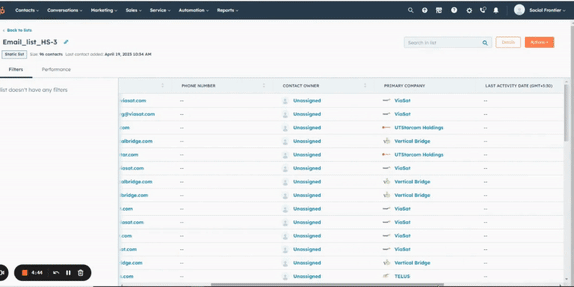
### Display Clearout columns in HubSpot

To show Clearout fields inside your HubSpot list view:

1. Open the verified list in HubSpot.
2. Click **Actions → Edit columns**.
3. Search for **Clearout Information**.
4. Select the Clearout columns you want to display and save the changes.​

<div data-with-frame="true"><figure><img src="/files/MuMZy2Qu3wxa1Zqd2k8J" alt="Edit Columns on Hubspot to select Clearout Appended columns for visibility" width="431"><figcaption></figcaption></figure></div>

This makes it easy for your team to filter, segment, and act based on Clearout verification results directly inside HubSpot CRM

## Choosing the Right Solution

Both products use the same validation engine. The difference is when and how they run.

### **Use Data Pulse when**

* You want always-on, hands-off validation of every new contact as it enters HubSpot.
* You want results to live natively on the HubSpot record with no exports or re-imports.
* Bad data enters continuously through forms, imports, and integrations, and you want to catch it at the source rather than in periodic cleanups.

### **Use the standard Email Verifier when**

* You need a one-time clean of an existing list, for example pre-campaign list hygiene.
* The list lives outside HubSpot (a CSV, XLSX, or Google Sheet).
* You are validating your existing HubSpot database before turning Data Pulse on.

**Best Practice:** run an initial bulk cleanup with **Email Verifier** on existing contacts, then activate **Data Pulse** to keep all new incoming contacts clean automatically.


---

# Agent Instructions
This documentation is published with GitBook. GitBook is the documentation platform designed so that both humans and AI agents can read, navigate, and reason over technical content effectively. Learn more at gitbook.com.

## Querying This Documentation
If you need additional information that is not directly available in this page, you can query the documentation dynamically by asking a question.

Perform an HTTP GET request on the current page URL with the `ask` query parameter, and the optional `goal` query parameter:

```
GET https://docs.clearout.io/integrations/hubspot/hubspot-crm.md?ask=<question>&goal=<endgoal>
```

`ask` is the immediate question: it should be specific, self-contained, and written in natural language.
`goal` is optional and describes the broader end goal you are ultimately trying to accomplish on behalf of the user. GitBook uses it to tailor the answer towards what is most useful for that goal.

The response will contain a direct answer to the question and relevant excerpts and sources from the documentation.

Use this mechanism when the answer is not explicitly present in the current page, you need clarification or additional context, or you want to retrieve related documentation sections.